
1/3
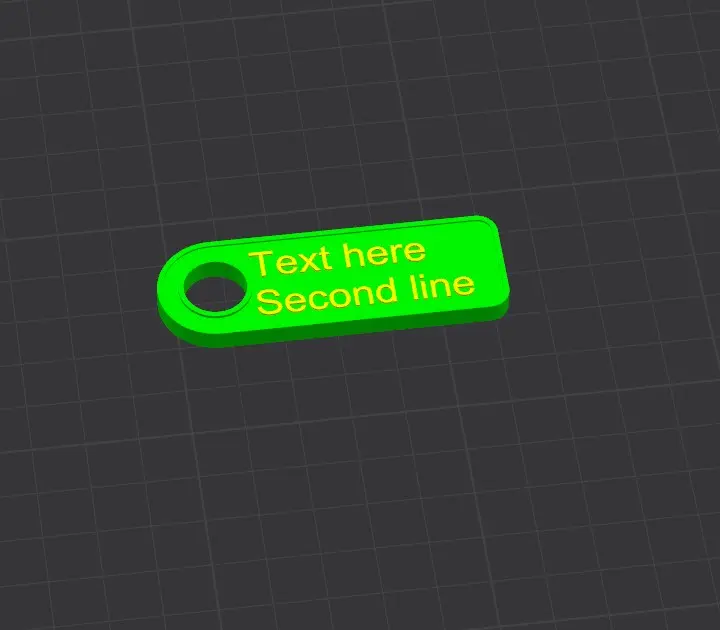
Model Overview & Print Notes
Boost Me
If you liked the model, click BOOST. Support me!
Boost
How to Customize the Text in Creality Print:
- Download the project file: Download the provided .3mf file.
- Open the project: Open Creality Print, go to File > Open Project, and select the downloaded .3mf file (or simply drag and drop it into the workspace).
- Locate the text: Go to the object list (usually on the left panel) and click on the Model tab to expand the model tree.
- Find the text field: Find the text part named "Text here" attached to the main model.
- Edit the text: Right-click on the "Text here" object and select Edit Text from the context menu.
- Enter your text: Type your desired text into the input field and apply the changes.
- Slice the model: Click the Slice button in the lower right corner to process the new text and generate the G-code.
- Print: Send the sliced file directly to your printer via the network or export it to a USB drive.
## Design Concept This keychain 3D model offers customization through text personalization, allowing the creator to add unique names or words. ## Use Case Ideal for crafting personalized gifts or identifying personal items with custom text keychains. ## Print Recommendations Compatible with both FDM and SLA printers. Use high-quality filament to ensure durability and legibility of the text. ## Assembly Instructions No assembly required post-printing. Ensure the text is inserted correctly before slicing for a smooth finish.

💬CrealityCloud Community Comments(...)
★CrealityCloud Original Reviews